
How to export contacts from an iPhone
If you use an iPhone to manage your contacts and don't have a Mac, these are the two best methods for bulk exporting contact records into a single multi-contact vCard file.
If you don’t have a Mac, the two best options for exporting contacts from an iPhone are to use the iCloud Contacts web app via a desktop computer or the Export Contact app for iOS. However, if you do have a Mac, it’s recommended that you export contacts directly from the Apple Contacts app on macOS.
Export contacts via iCloud Contacts web app
If you use iCloud for your contacts but don’t use a Mac for your desktop computer, you can export contacts by using the Contacts app at icloud.com
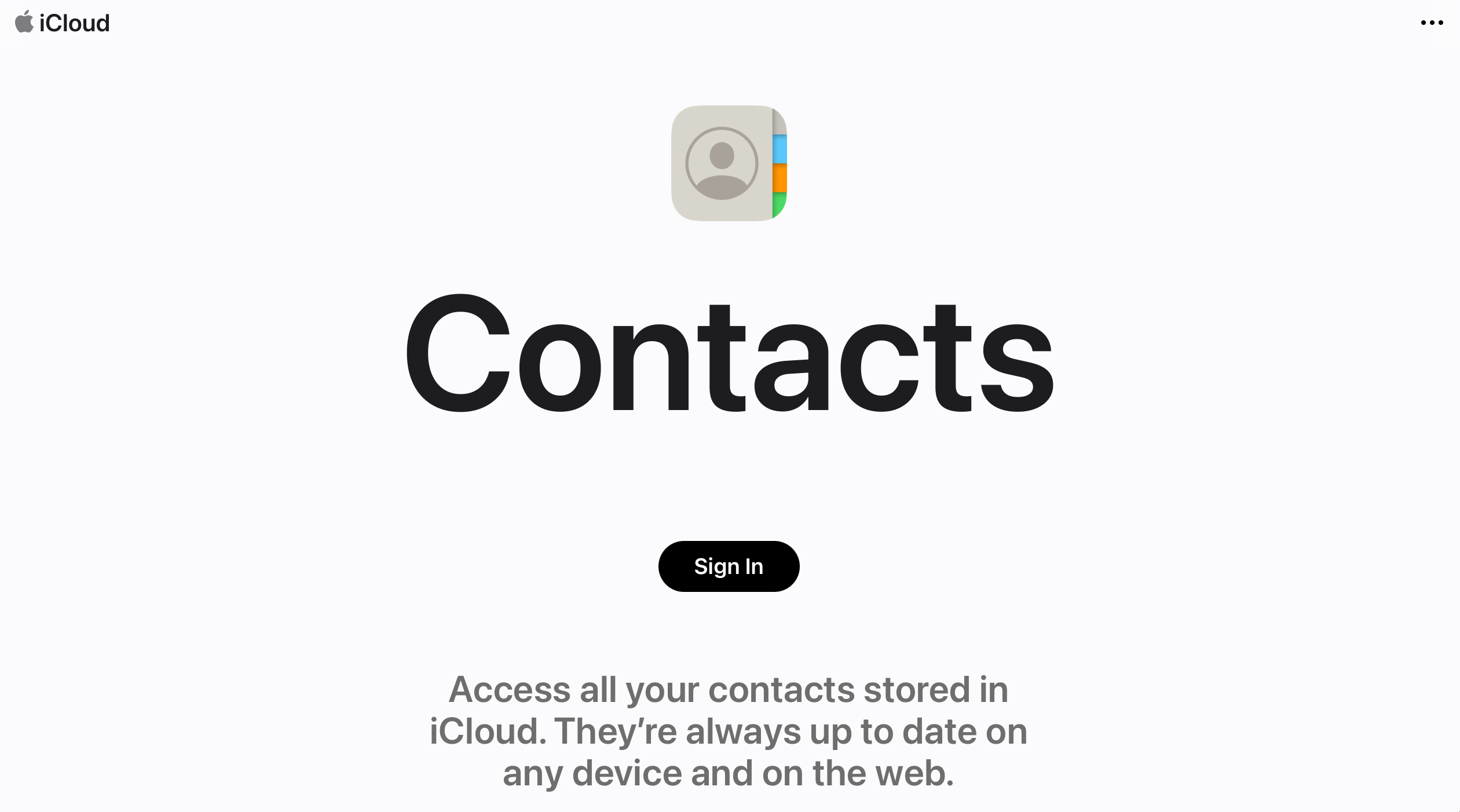
- Login to iCloud
Visit icloud.com/contacts and login to access the Contacts web app.
- Select contacts
Select multiple contacts by holding down the Command (⌘) key and clicking on each contact record you want to export. If you want to export all contact records, select a contact and then click on ⌘A to select all contacts.
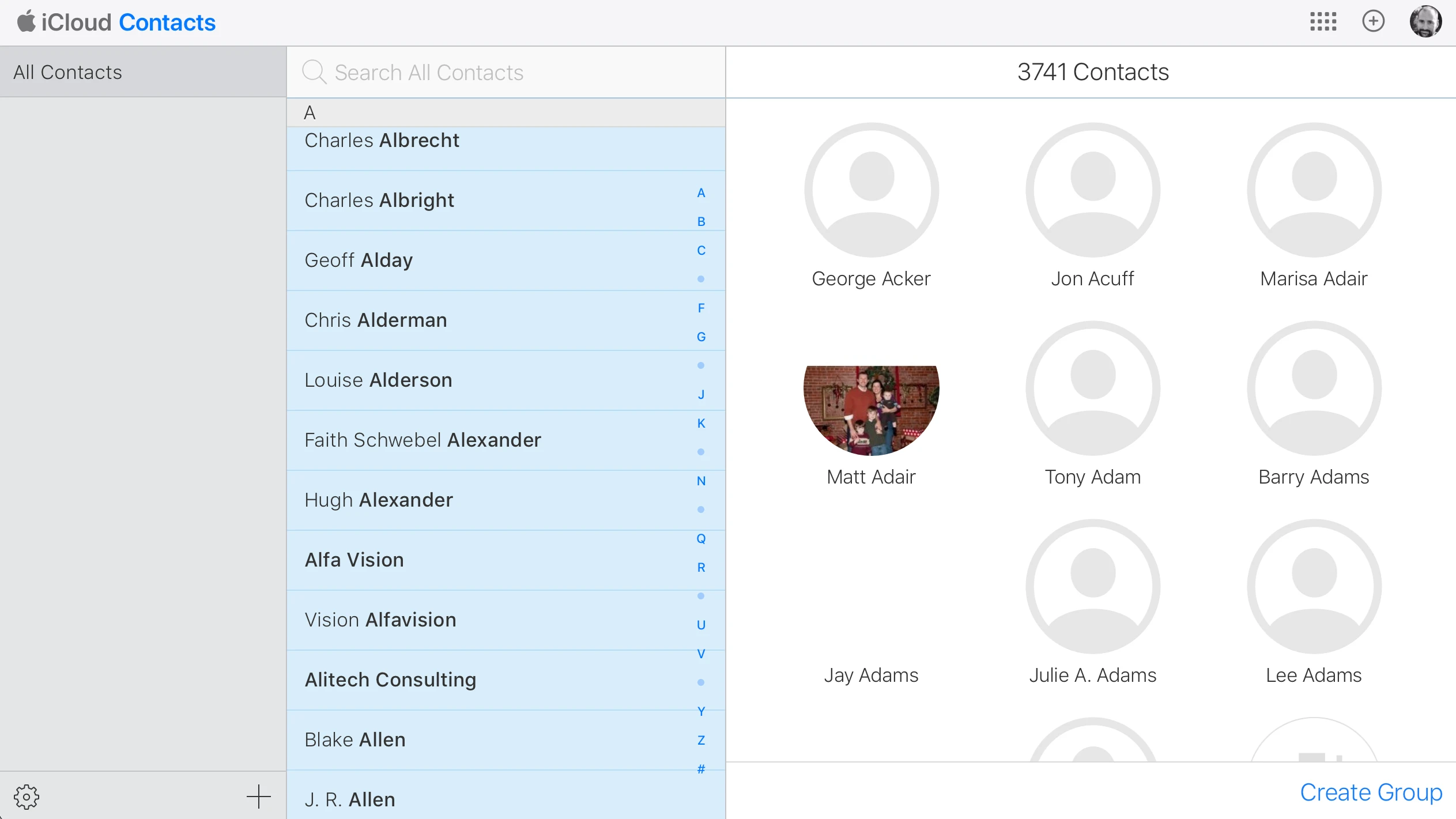
- Export vCard
Click the Setting icon and then select Export vCard…

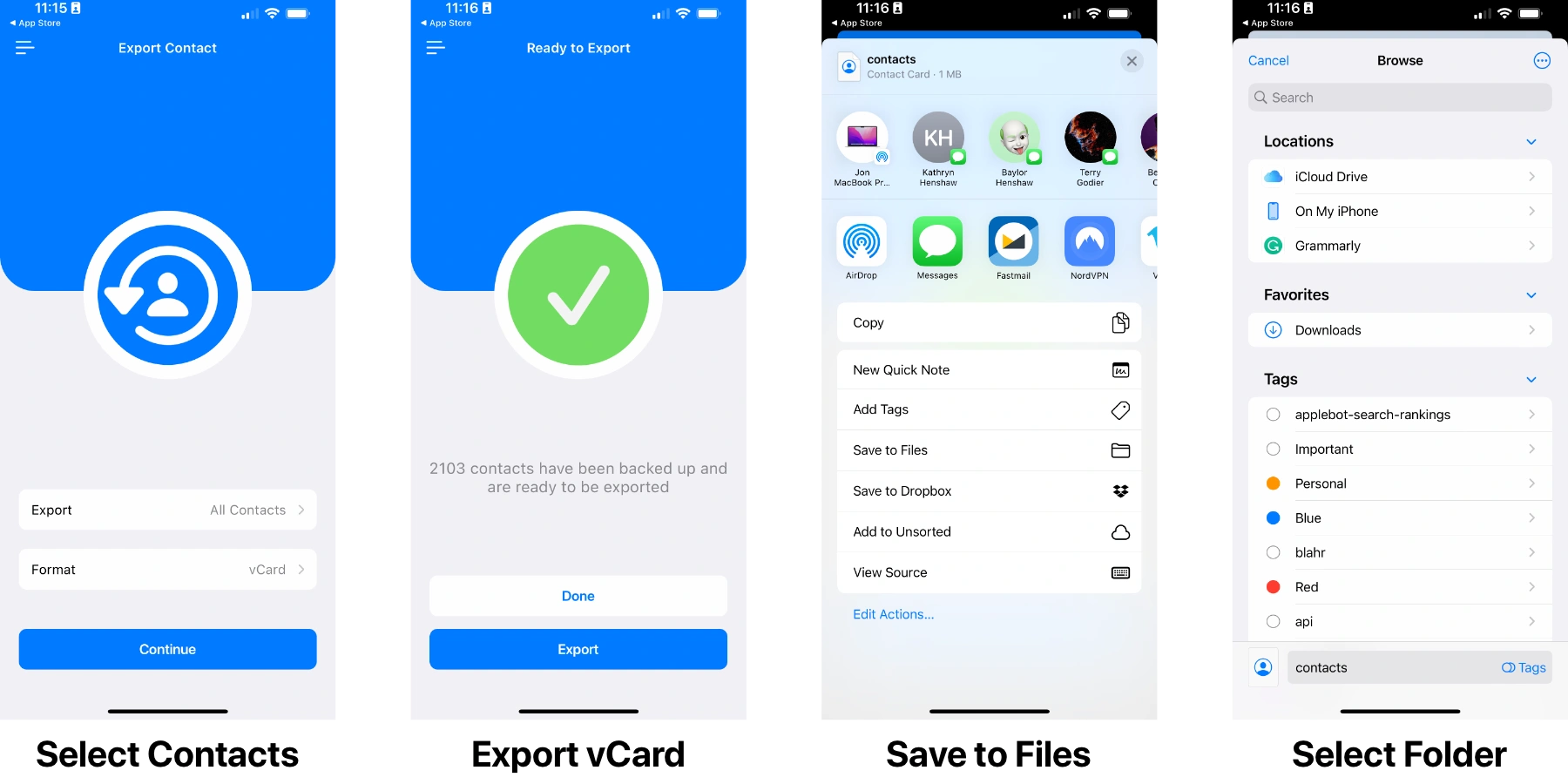
Export contacts via the “Export Contact” app
If you don’t use iCloud for your contacts on your iPhone, you will need to download and install an iOS app called Export Contact. The free version will allow you to export up to 100 contacts. If you have more than 100 contacts, you will need to upgrade to Export Contact Pro, which has a one-time $5 in-app fee.

Jon Henshaw is the founder of Coywolf and an industry veteran with almost three decades of SEO, digital marketing, and web technologies experience. Follow @jon@henshaw.social