
How to import contact records from the Apple Contacts app
The best method for importing multiple contact records from Apple Contacts into Contacts by Coywolf is to export them as a single multi-contact vCard.
To import contact records from Apple’s Contacts app, you must first export them as a vCard. This method requires macOS. However, you can also export contacts from an iPhone.
- Select contacts in Apple Contacts
Select multiple contacts using the Command (⌘) key or use ⌘A to select all contacts.

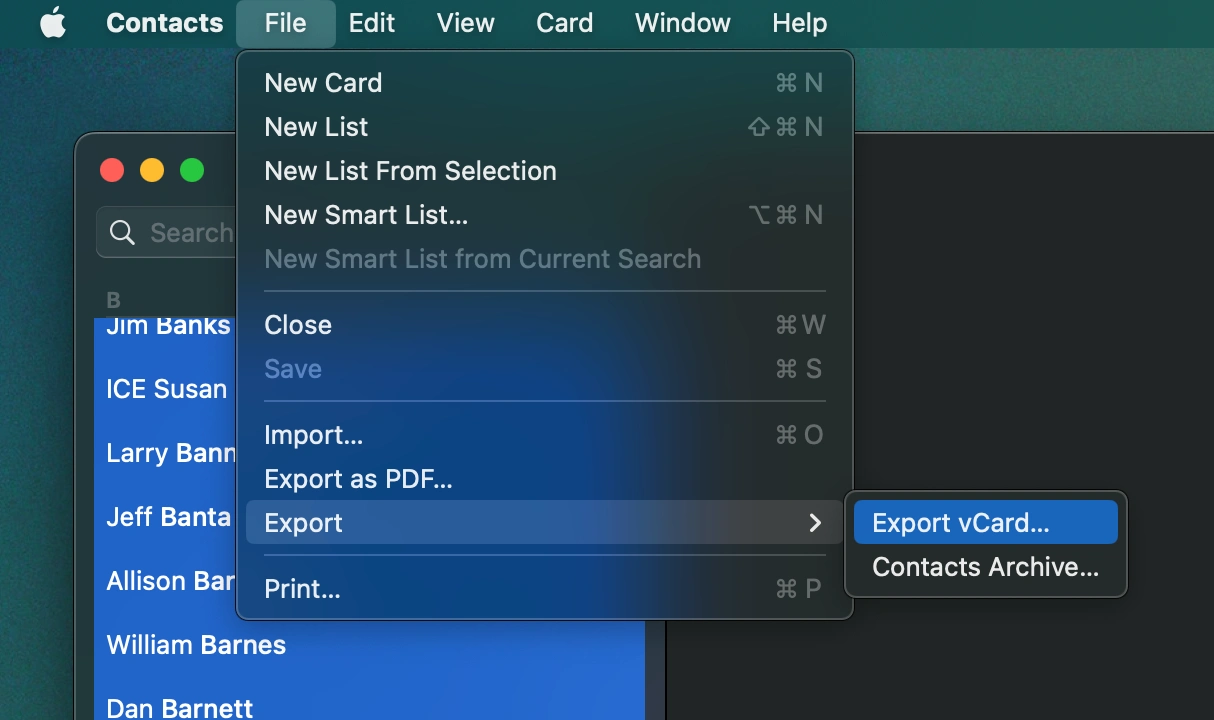
- Export contacts to vCard
From the menu, click File > Export > Export vCard… and it will create a single multi-contact vCard file. Alternatively, you can right-click on one of the selected contact records to get the same menu option or click and drag one of the selected contact records to a Finder folder or the macOS desktop.
- Import into Contacts by Coywolf
In the Contacts by Coywolf web app, click on the Settings icon and then choose Import vCard. Find and choose the file you exported from Apple Contacts.


Jon Henshaw is the founder of Coywolf and an industry veteran with almost three decades of SEO, digital marketing, and web technologies experience. Follow @jon@henshaw.social