
How to share and request contacts to update their details
Coywolf Contact's sharing feature has an option to allow people to update their contact details without needing an account.
With the sharing feature, Coywolf Contact makes it easy for contacts to update their contact details. When you create a sharing link, there’s an option to allow recipients to edit the contact details. Sending the share link to the contact will allow them to modify their contact details. After they save the changes, you can accept or reject them.
Here’s how to share a contact record and request the recipient to update their details.
- View contact
Find and view the contact record you want to share.
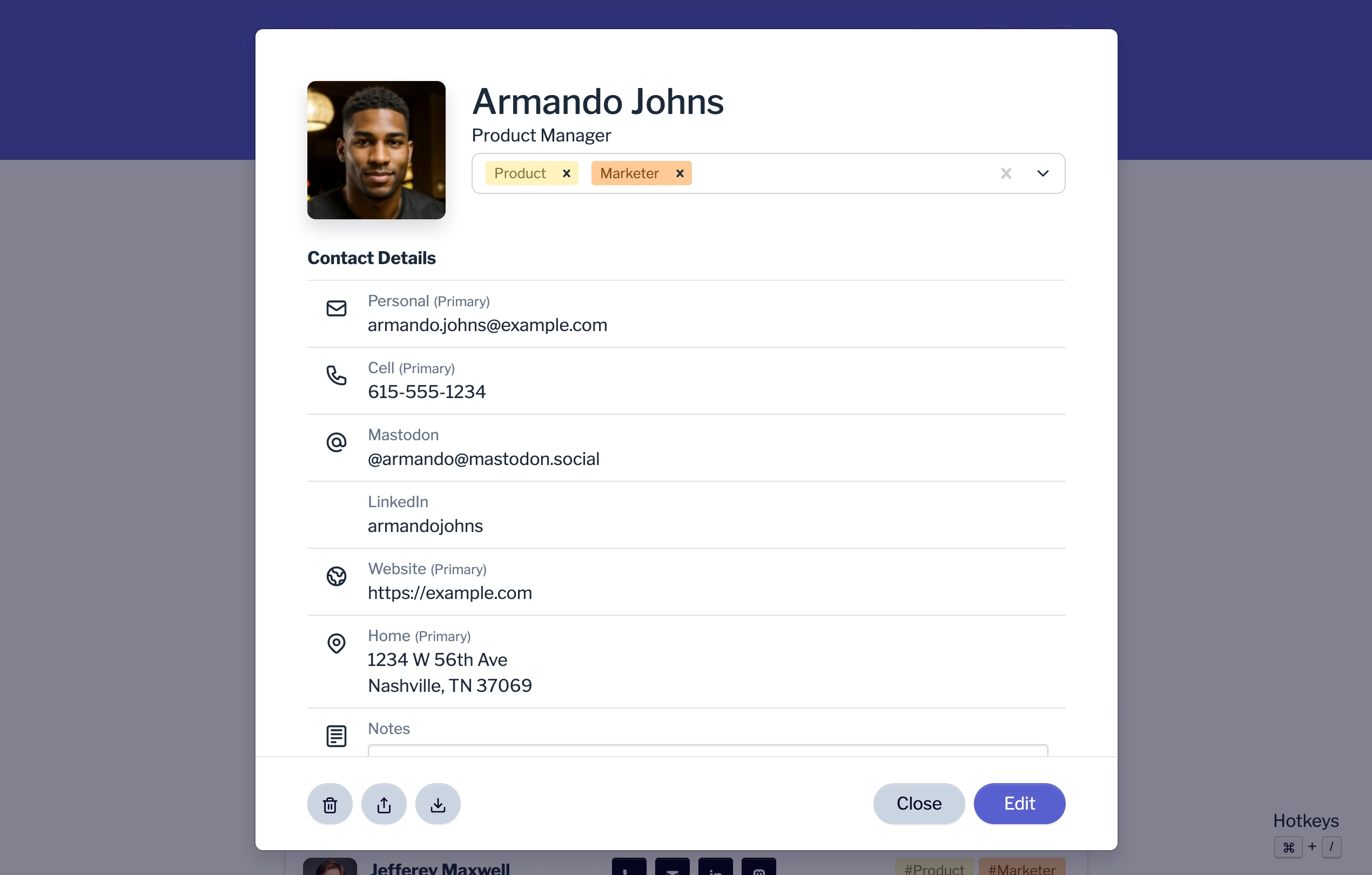
- Click on Share button
On the bottom-left of the contact record, click on the Share button.

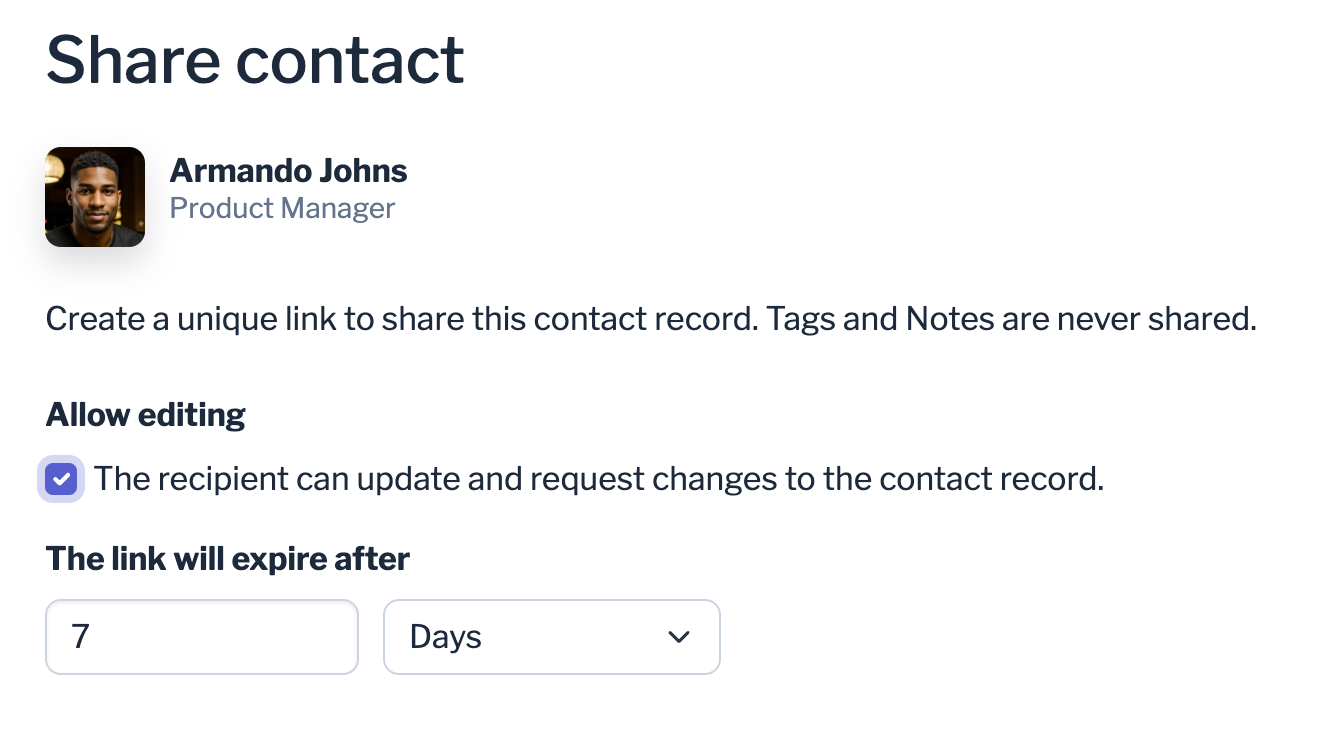
- Click on ‘Allow editing’ checkbox
On the Share contact view, click on the Allow editing checkbox, specify the link expiration, and then click on the Create link button.
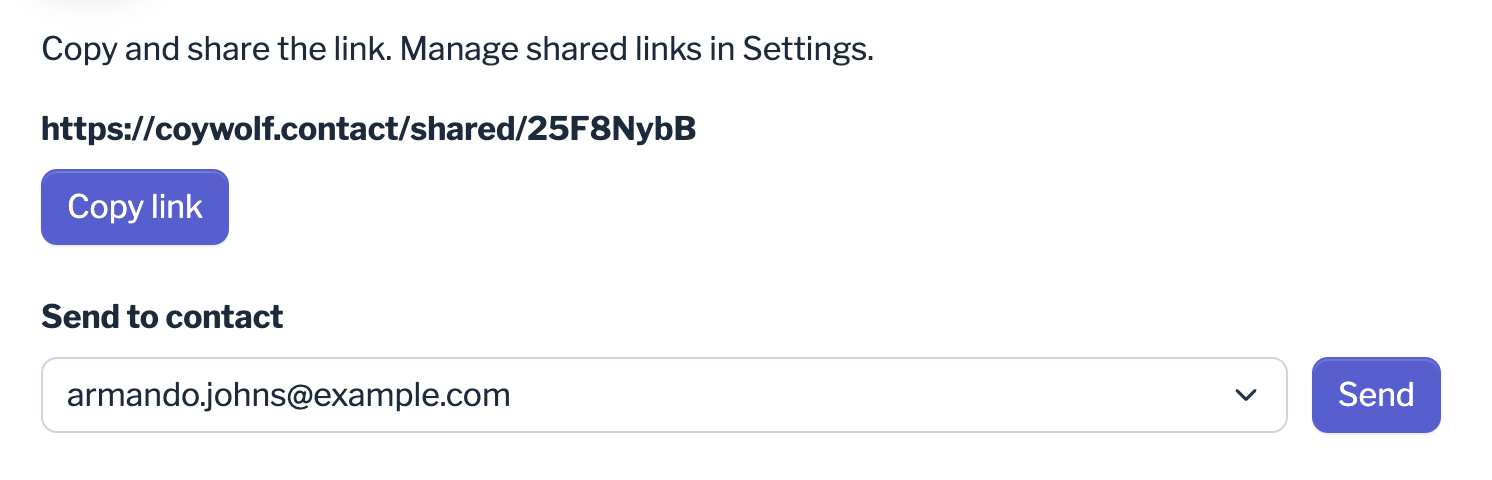
- Share the link
Copy and share the link or choose an email address and click the Send button to create a prefab email message to the contact.
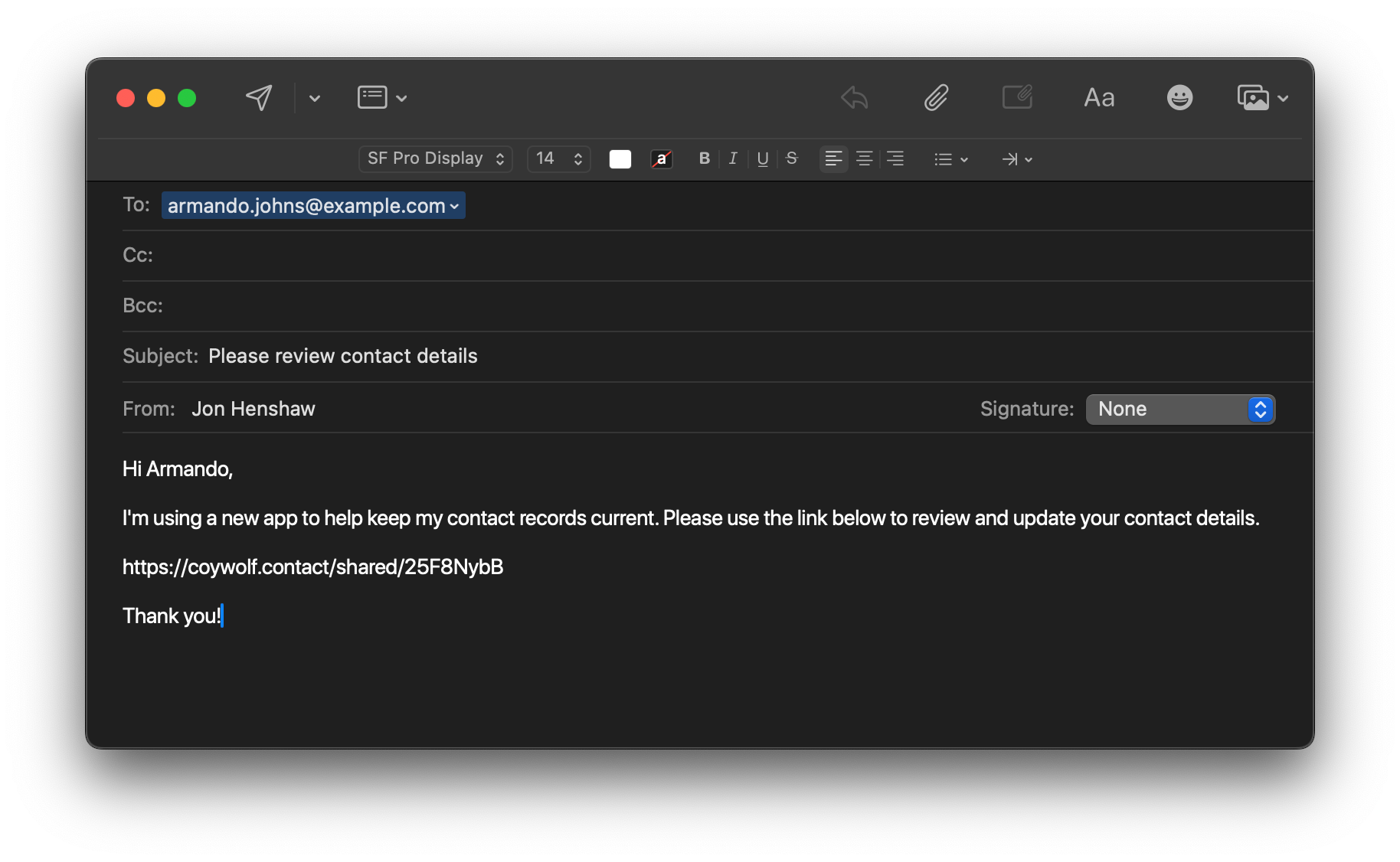
- Email message (Optional)
If you clicked the Send button to create a prefab email message, you can send it as-is or customize it and then send it.
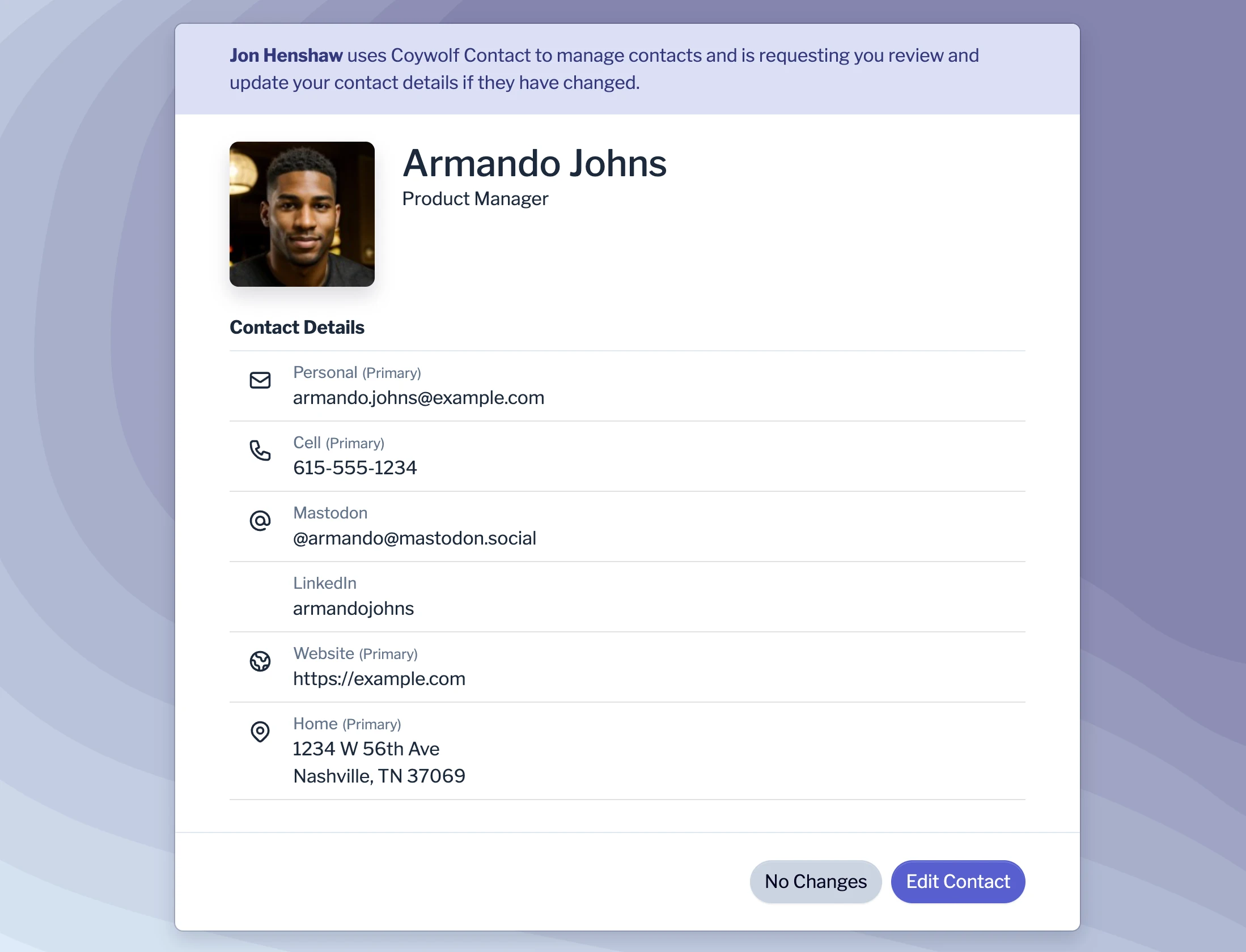
When the recipient visits the link, they’ll have the option to choose No Changes or Edit Contact.
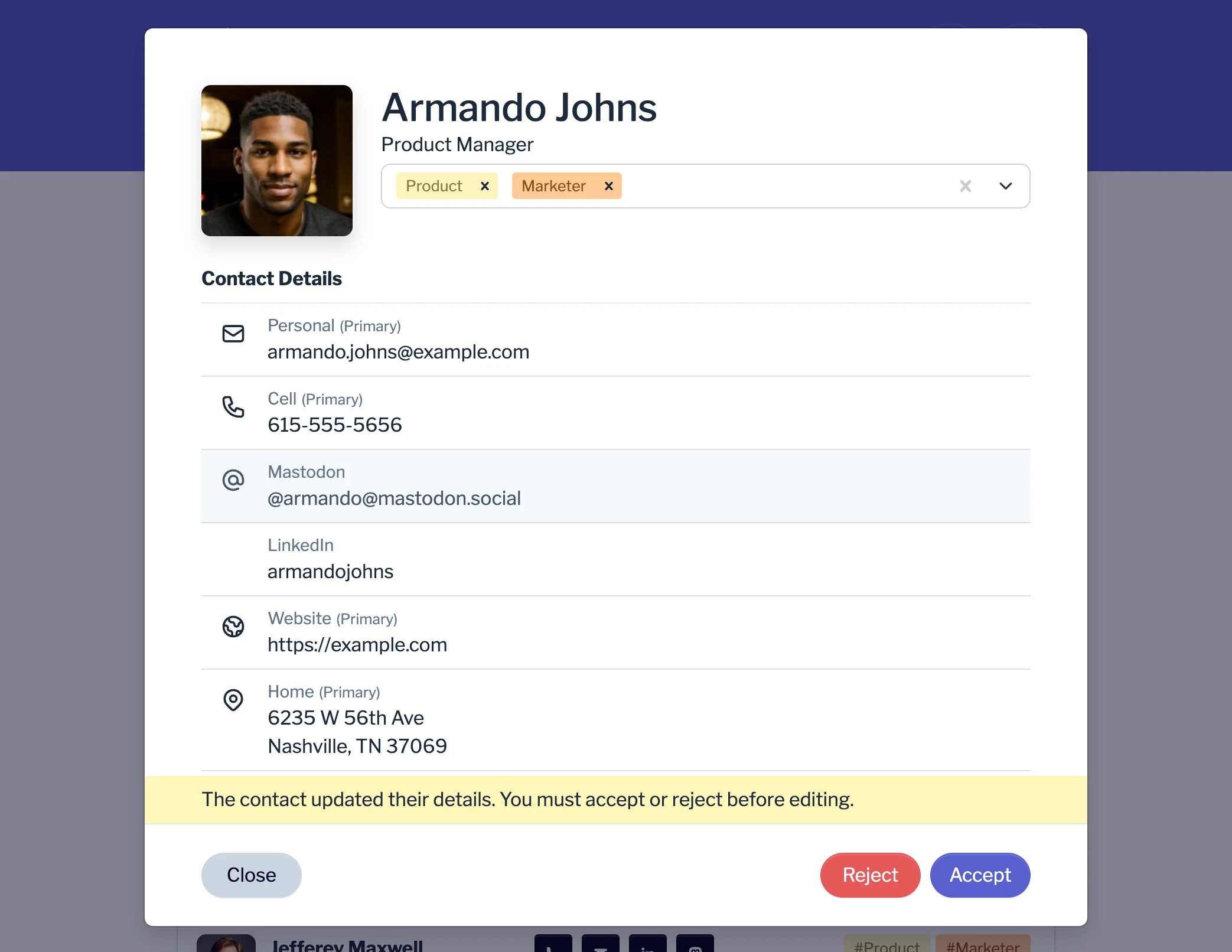
If the recipient updates their contact detail, you will be prompted to accept or reject the changes the next time you view their details.

Jon Henshaw is the founder of Coywolf and an industry veteran with almost three decades of SEO, digital marketing, and web technologies experience. Follow @jon@henshaw.social